

Assets
Overview
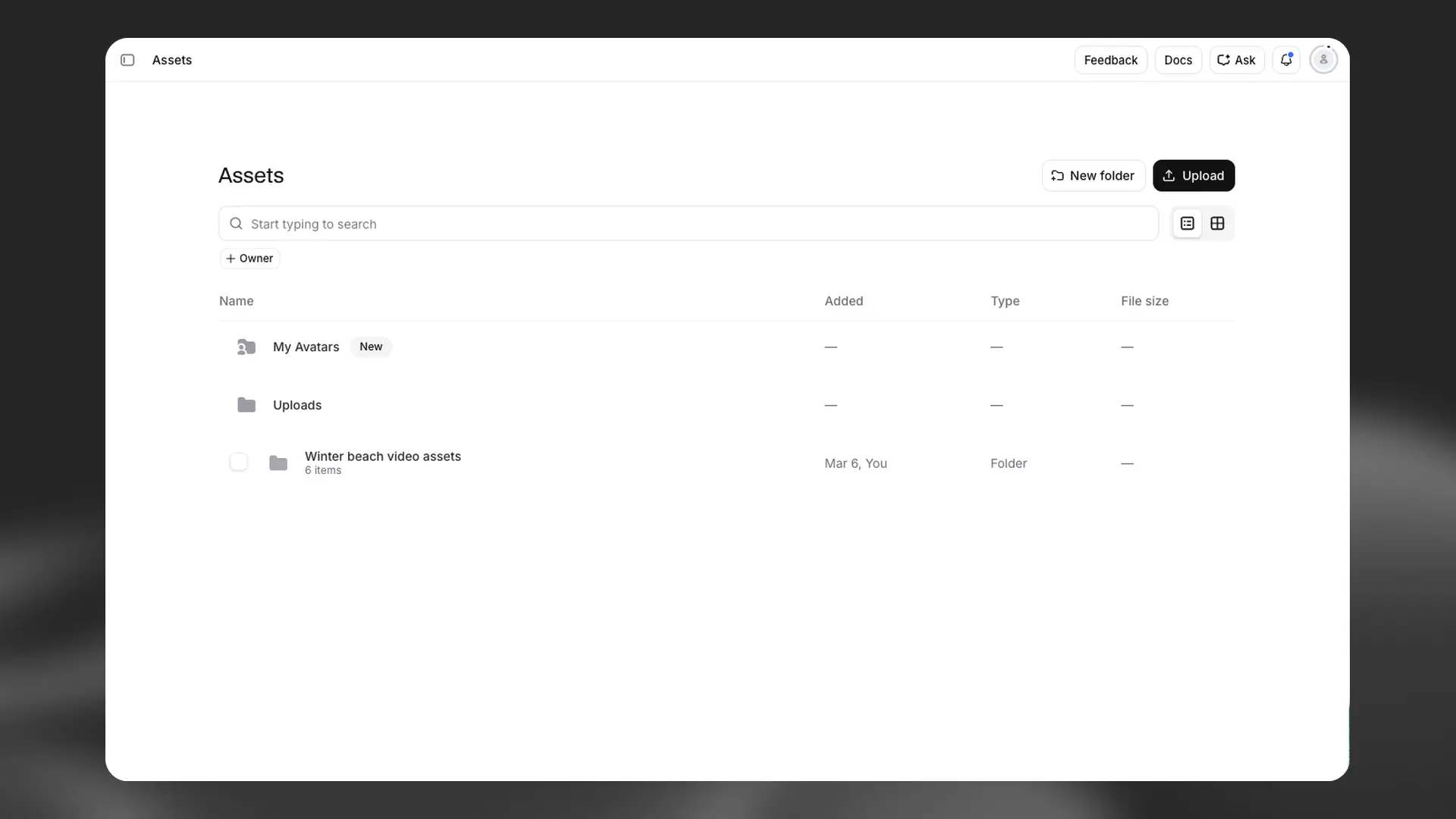
Assets provides a centralized system to manage all your creative assets on the ElevenCreative platform. Store, organize, and share your audio, video, and voice content in one place for easy access across projects.
Assets supports the following asset types:
- User-uploaded media files
- Text to Speech generations
- Voice Changer and Voice Isolator outputs
- Sound Effects generations
- Image & Video creations
- Voices
Accessing Assets
Navigate to the Assets section from the main navigation menu in the ElevenCreative platform. The Assets interface provides a comprehensive view of all your assets with options to search, filter, and organize your content.
Managing assets
Adding assets
There are multiple ways to add assets to your Assets library:
Direct upload
- Click the Upload button in the Assets interface
- Select one or multiple files from your device
- Assets will be automatically added to your library
Supported file formats vary by asset type. Audio files support common formats like MP3, WAV, and FLAC. Video files support MP4, MOV, and other standard formats.
From other tools
Add content generated from various ElevenCreative tools directly to Assets:
- Drag and drop: Drag outputs from Speech, Sound Effects, and other tools directly into the Assets interface
- Save to Assets option: Use the Save to Assets option in the more actions menu (three dots) for voices you’ve saved or created.
Organizing assets
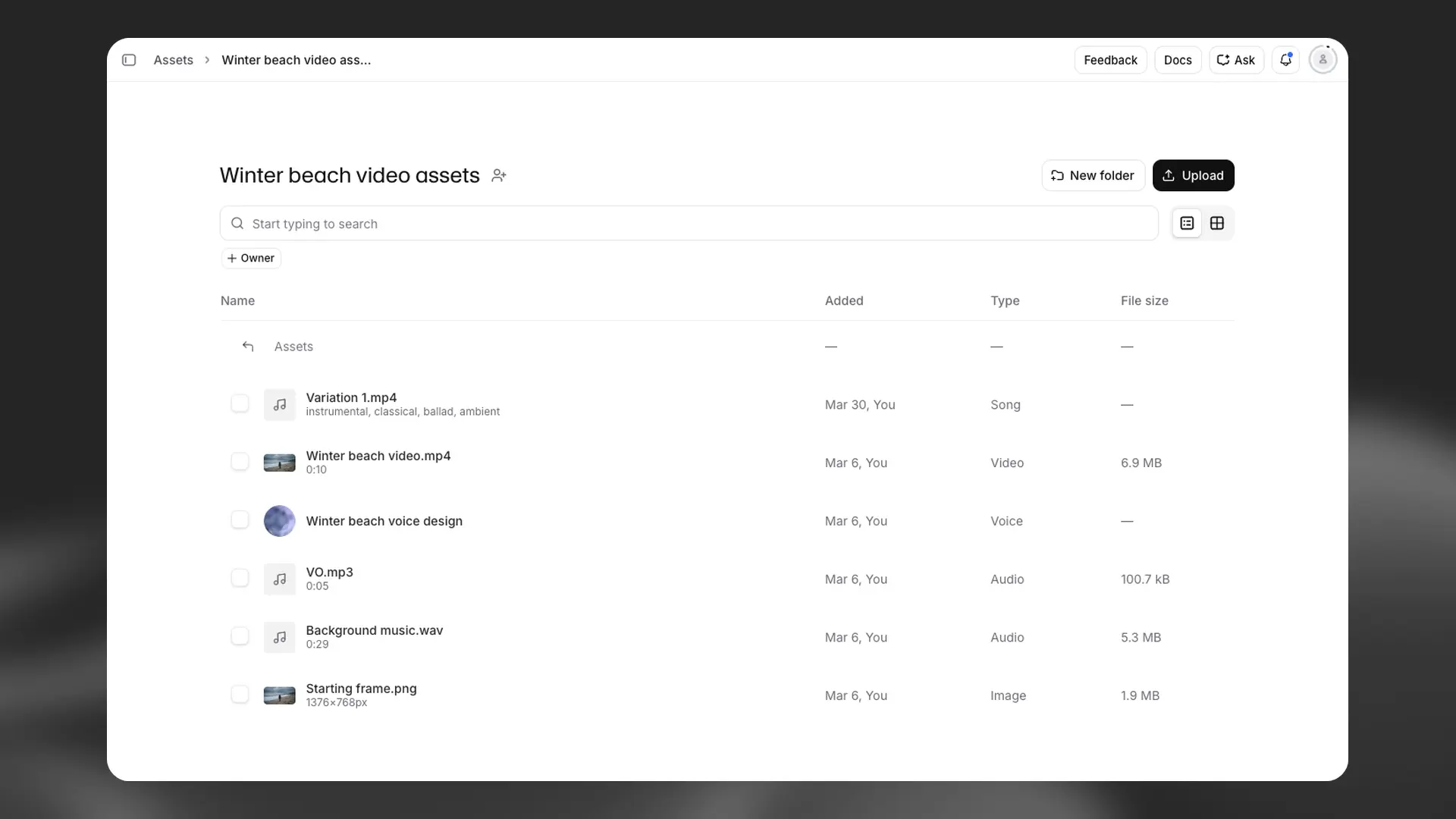
Keep your assets organized with folders and collections:
- Create folders: Group related assets together by creating custom folders
- Move assets: Drag and drop assets between folders
- Search: Use the search bar to quickly find specific assets by name
Asset actions
Each asset in your library supports multiple actions:
- Preview: Play audio or view images and videos directly in the interface
- Download: Save assets to your local device
- Rename: Update asset names for better organization
- Delete: Remove assets you no longer need
Sharing folders
If you’re part of a Workspace with multiple seats, you can share folders with other members. Sharing a folder gives access to all assets within that folder.
How to share
- Open the folder you want to share
- Click the share folder icon next to the folder name
- Select who to share the folder with (individual users, groups, or service accounts)
- Assign the appropriate sharing role
Sharing roles
When sharing a folder, you can assign one of three roles:
- Viewer: Can view and use the assets in their projects but cannot modify them
- Editor: Can view, use, and edit the assets
- Admin: Full control including the ability to delete assets and manage sharing permissions
FAQ
Can I recover a deleted asset?
No, deleted assets cannot be recovered. Deleting an asset is permanent and cannot be undone, and you will be asked to confirm the deletion request.
What file formats are supported?
Assets supports a wide range of audio, video, and image formats. Common audio formats include MP3, WAV, FLAC, and AAC. Video formats include MP4, MOV, and WebM. Image formats include JPG, PNG, and WebP.
Can I organize assets into nested folders?
Yes, you can create nested folder structures to organize your assets in a way that makes sense for your workflow. Simply create a folder and then create additional folders inside it.