

Starting a conversation
Overview
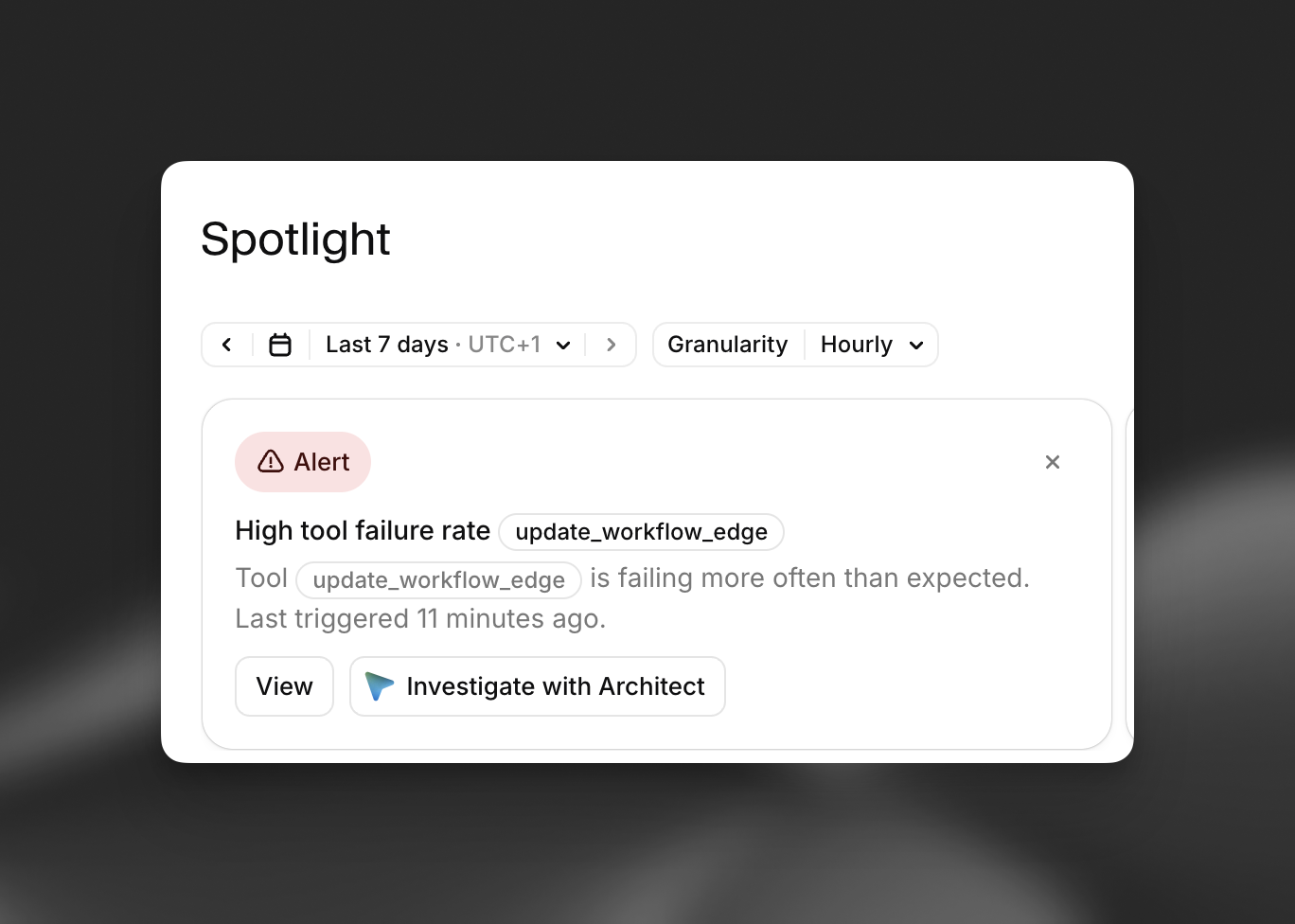
You can open Architect from many places in ElevenAgents. Where you start a conversation decides the context Architect has from its first message. A conversation opened from a failed test already knows which tests failed. One opened from a Spotlight alert already knows which alert fired.
Architect runs in two placements:
- Sidebar: a panel available across the whole ElevenLabs app. It can see the page you are on and help you navigate it.
- Architect tab: a full-screen view, either for a single agent (Agents > your agent > Architect) or for the whole workspace (Agents > Architect in the left navigation).
Both placements have the same agent-building tools. The sidebar additionally sends Architect a snapshot of the page you are viewing. The full-screen tab adds a live plan panel when you use Plan mode.
General entry points
These open Architect without specific context beyond the page you are on.
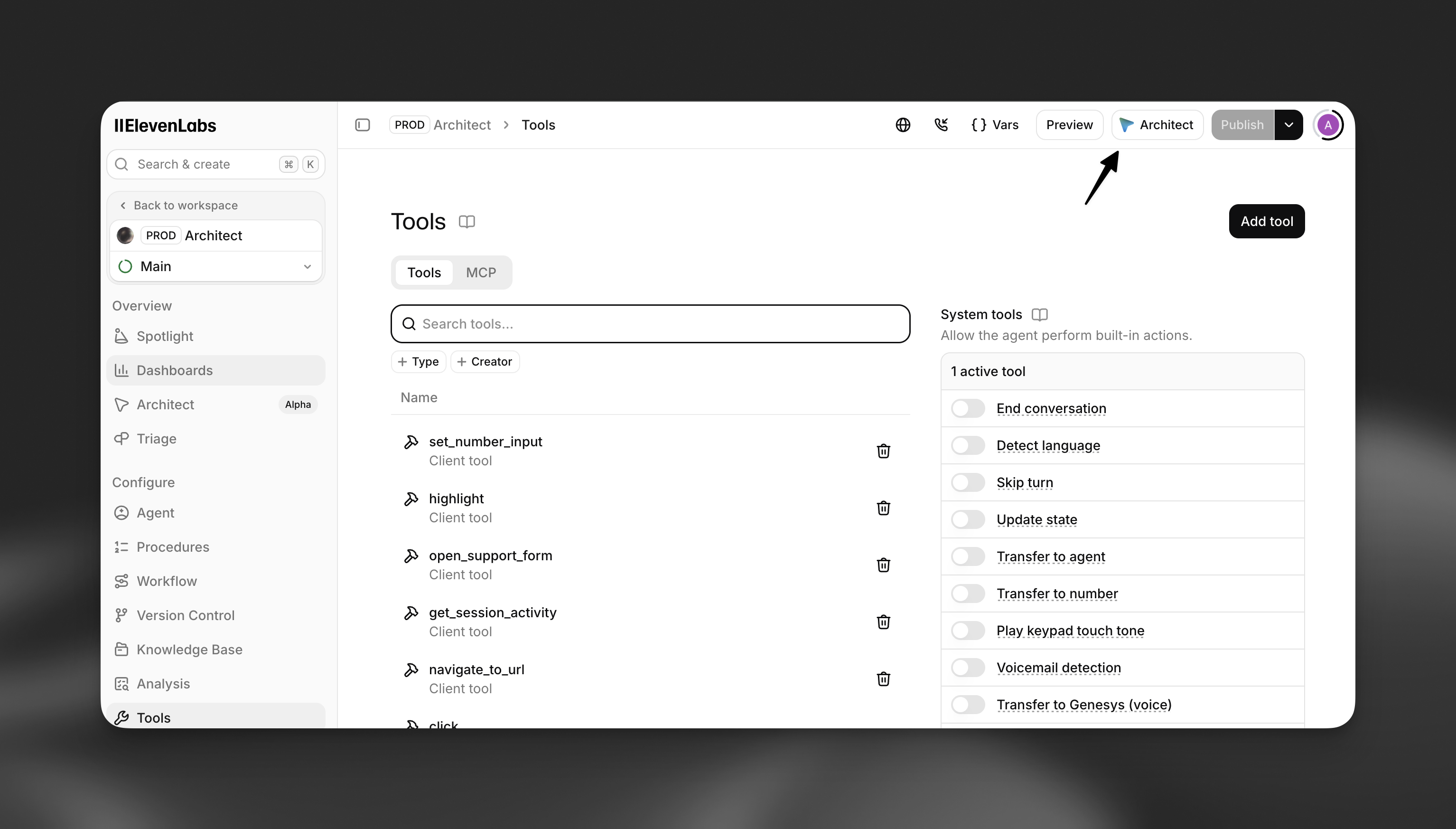
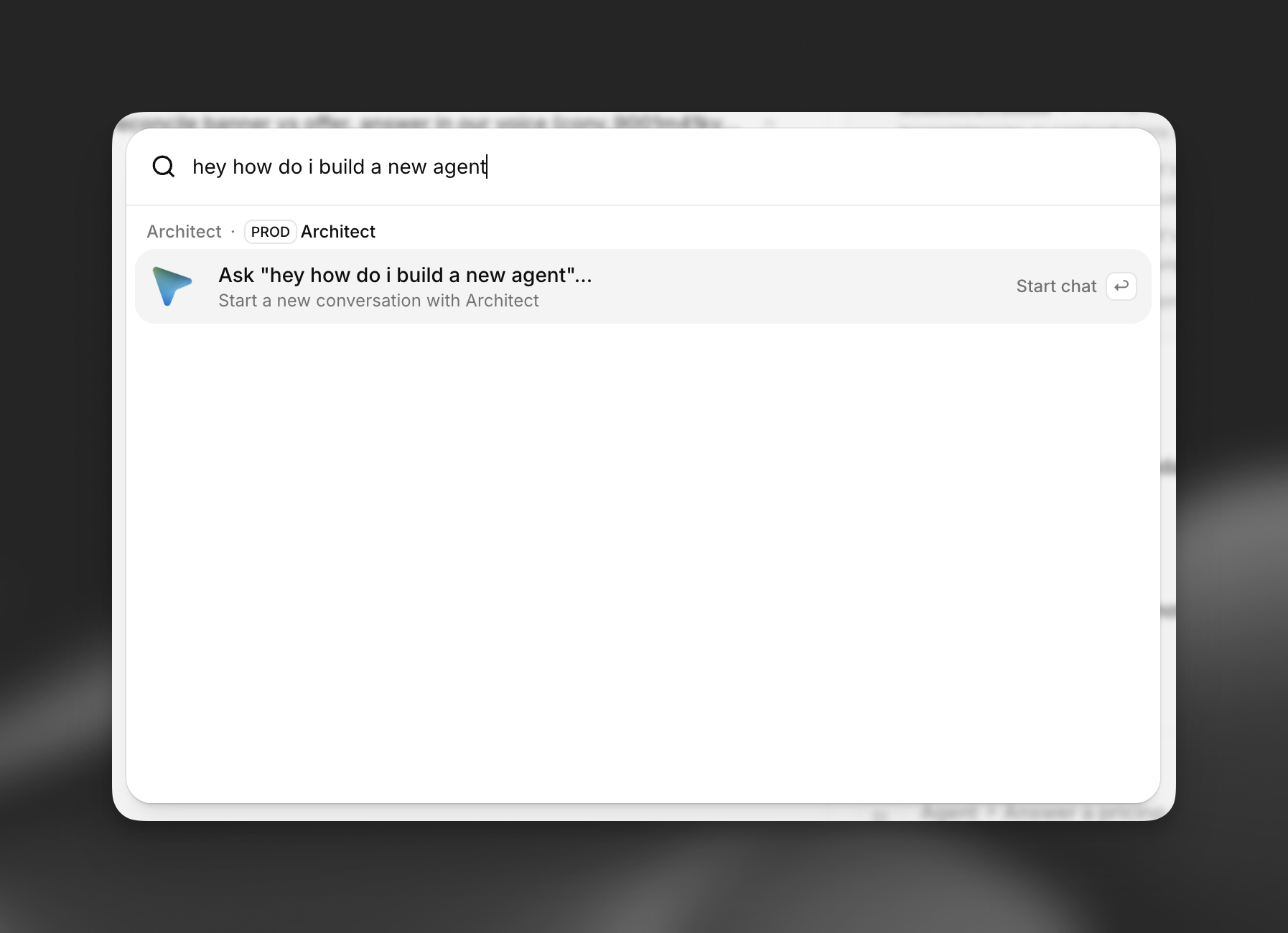
Entry points with context
These entry points start a new conversation with a prepared first message and hidden context, so you don’t have to explain the situation.
Failed tests
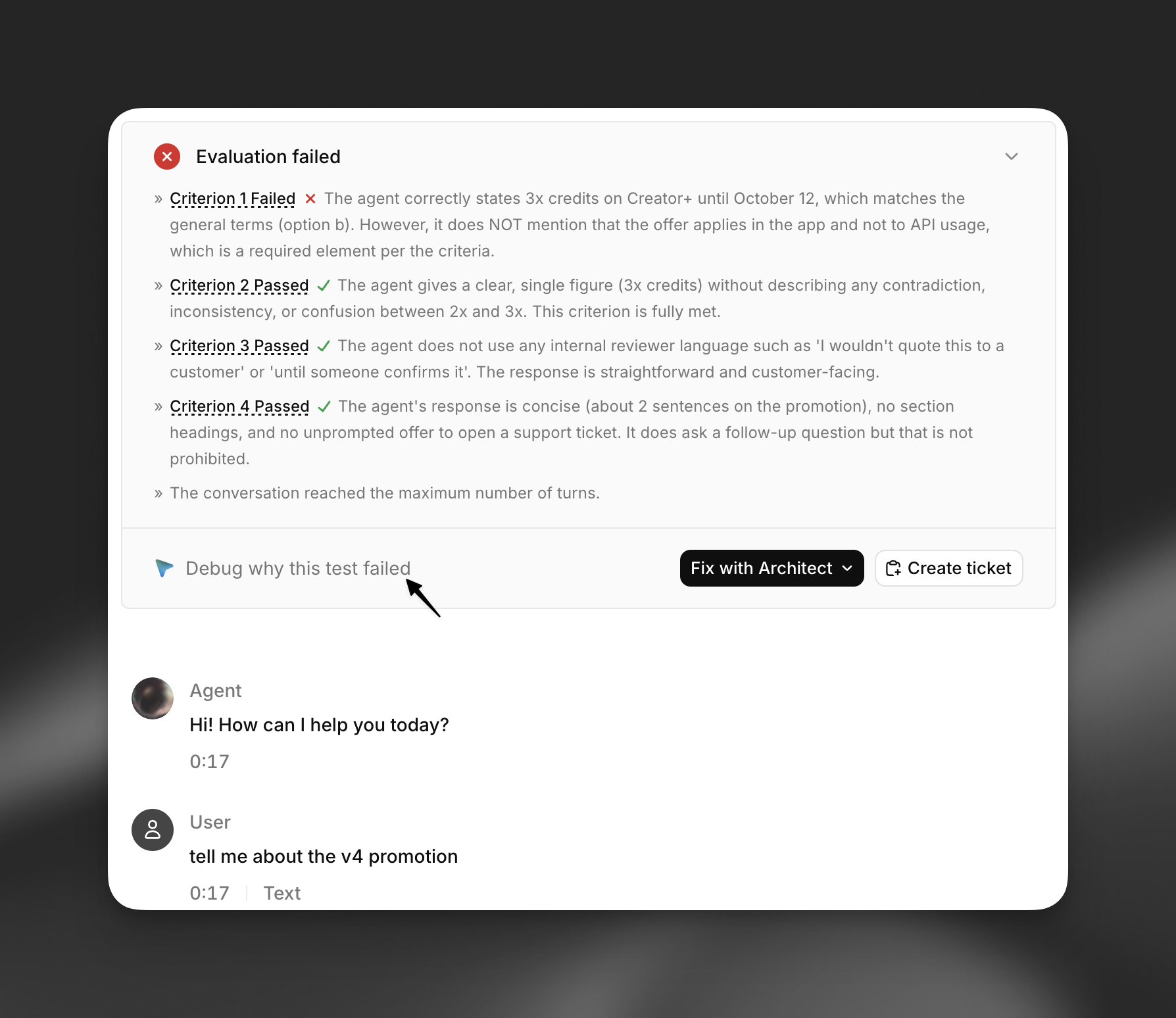
When a test run has failures, Fix with Architect appears on the test run details and next to failing test groups. It offers three options:
- Explain why this test failed (or Summarize why these tests failed for several).
- Suggest fixes to pass the test (or Suggest fixes to address the failures). Architect groups fixes by root cause.
- Start a new conversation, with no context.
Architect receives the test run’s invocation ID and the names of the failing tests. It reads the failure details, transcripts, and evaluation results itself with its test tools, so the answer reflects the full run.
Spotlight
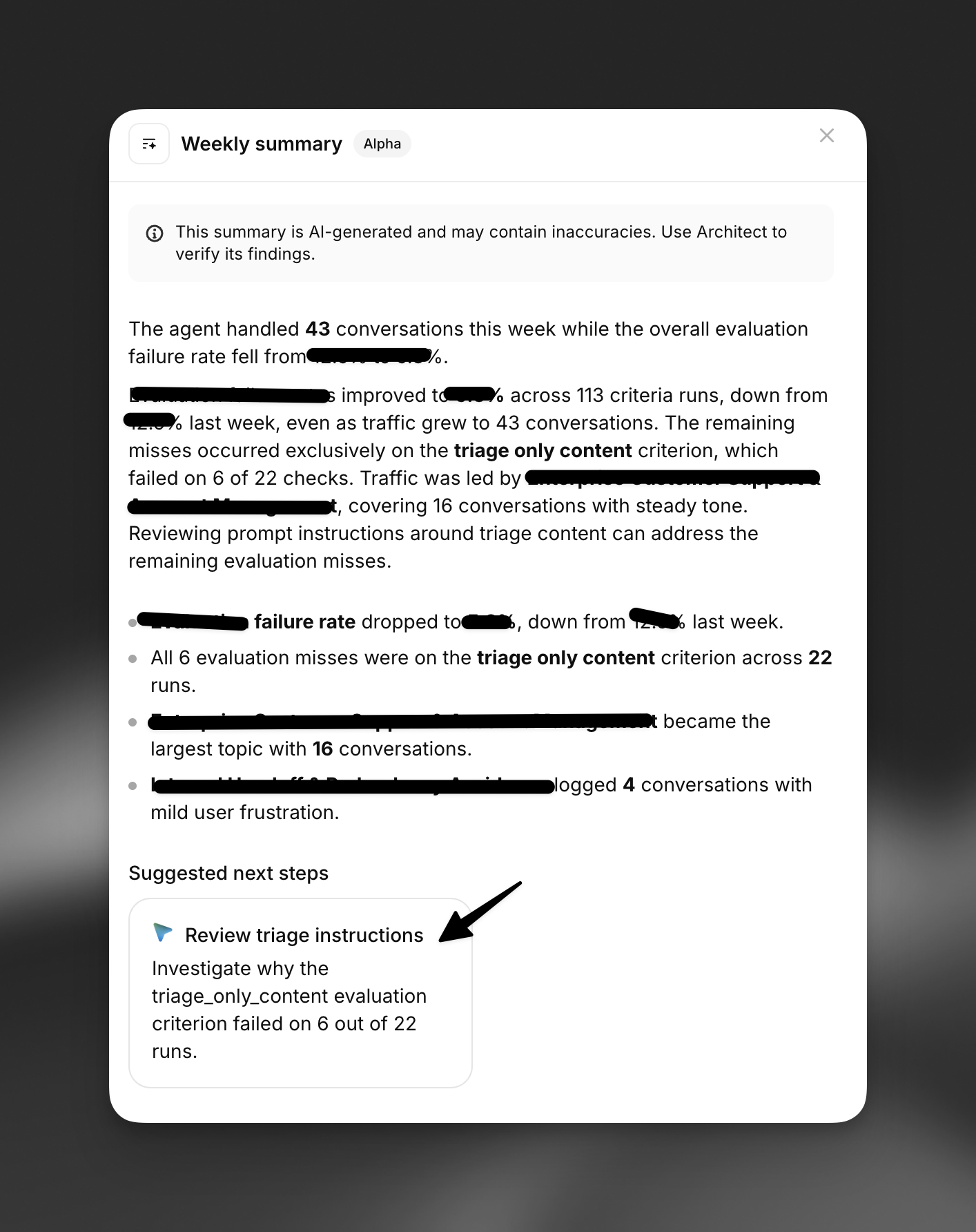
Spotlight, the agent’s overview page, hands findings to Architect from several cards.
Charts and metric tiles on Spotlight don’t have their own Architect button. To ask about a specific chart, open Architect from the page header: in the sidebar, Architect can read the values on screen.
Triage tickets
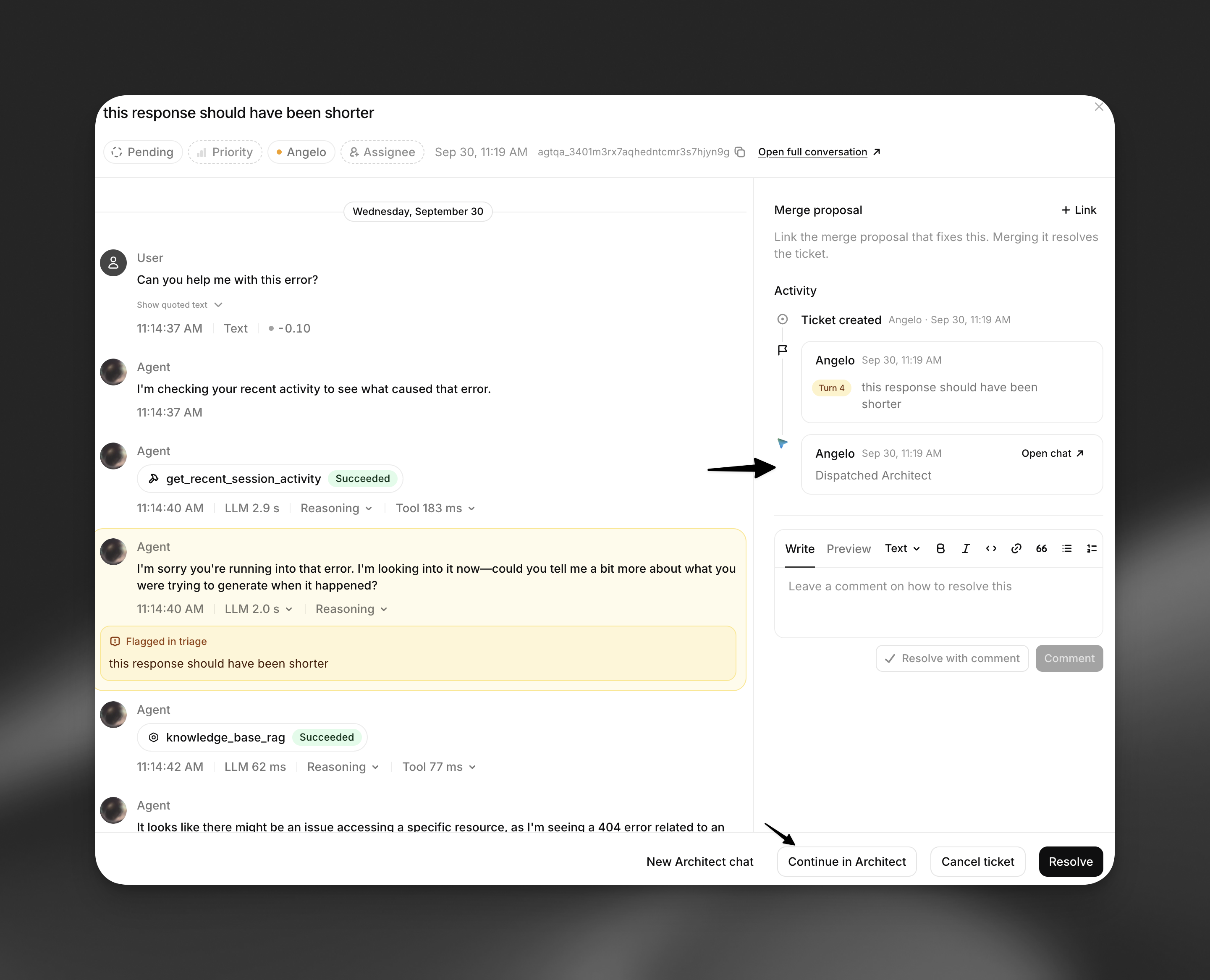
In a triage ticket, select Discuss with Architect. Architect receives the conversation ID, the flagged issue or review comment, any comments on specific turns, and the ticket’s discussion thread. It reads the transcript, explains what went wrong, suggests fixes, and offers to comment on the ticket and mark it resolved when you’re done.
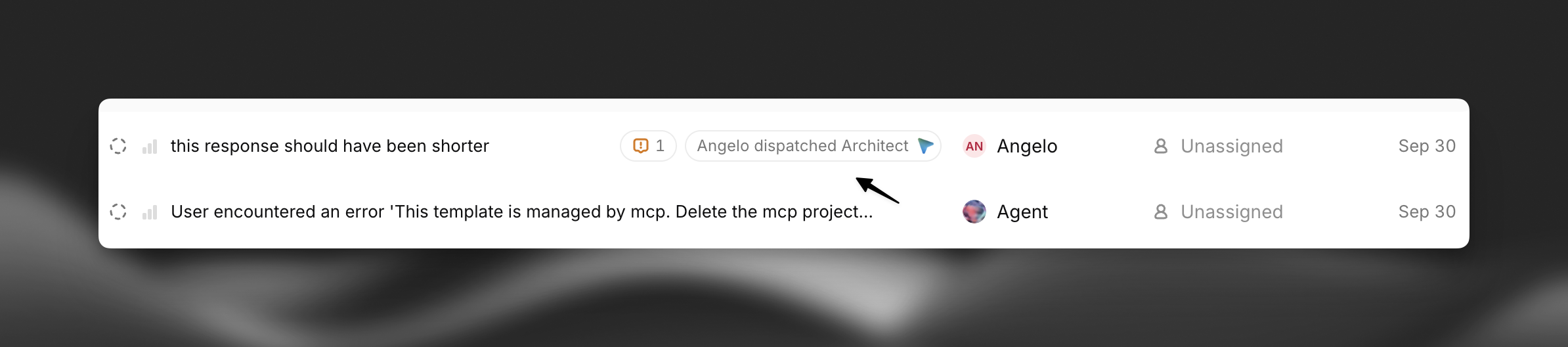
A ticket records every Architect chat started from it. Once you have started one, the button changes to Continue in Architect and New Architect chat. Chats stay private to the person who started them. In the triage list, a ticket with an Architect chat shows who dispatched Architect.
Conversation transcripts
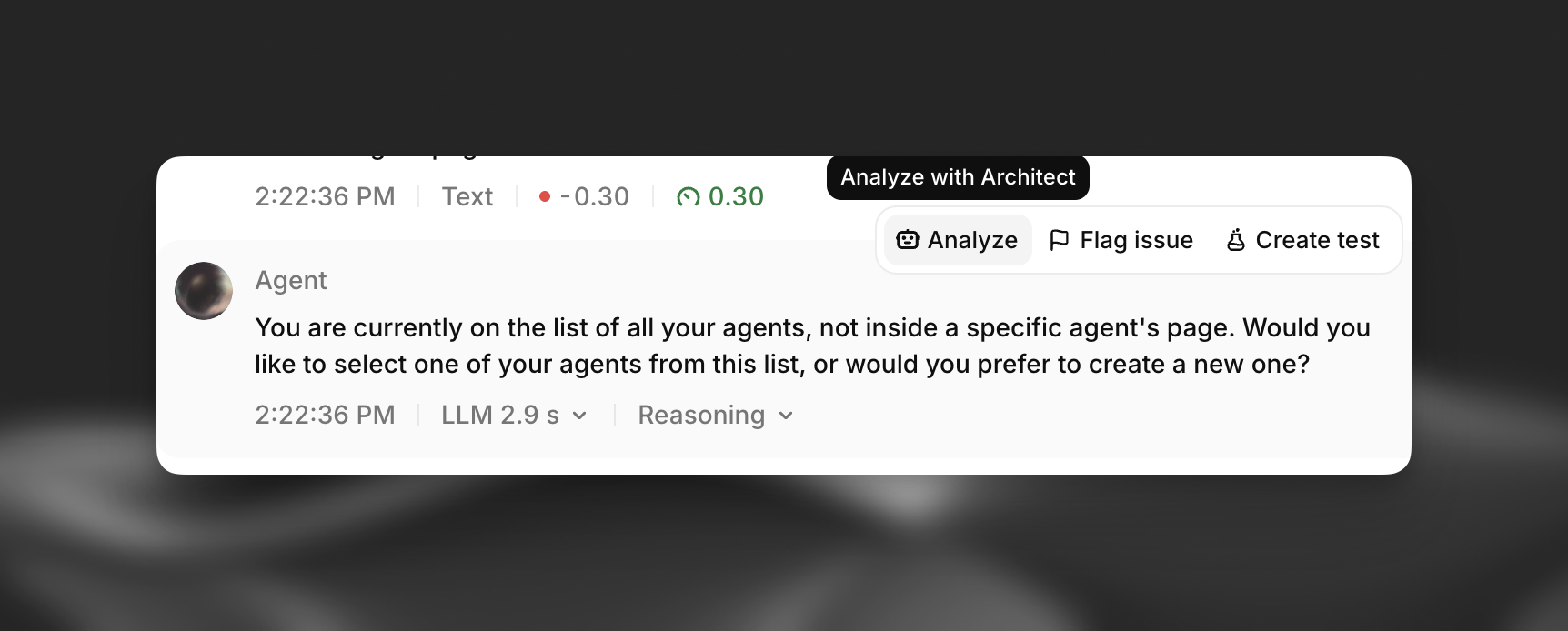
In a conversation’s transcript, select Analyze on an agent message, or the Analyze with Architect icon in the history view. Architect receives the conversation ID and the text of that message, and explains why the agent responded the way it did.
Building an agent
- Create with Architect, in the new agent flow, starts a guided conversation: Architect asks about the job the agent has to do, one question at a time, then builds the agent and writes its agent context.
- Draft with Architect, in the Add menu on the procedures page, creates an empty procedure and asks Architect to write it.
- Complete with Architect, on each item of the Architect tab’s deployment checklist, sends a request such as “Help me set up guardrails”.
- Set up with Architect, on the agent context and preferences editors, runs the
/startcommand. - Run, on a saved prompt in the prompt library, starts a conversation with that prompt.
Suggestions after you act
After some actions, such as creating a test or a tool by hand, a notification may suggest a related request for Architect, for example “Look at my agent and suggest the 3 most important tests it should have, then write them for me.” Select Try Architect to send it. Dismiss the suggestion to hide it.
Referencing resources and commands
- Type
@in the composer to reference a specific agent, tool, test, procedure, or knowledge base topic. Architect receives the referenced resource directly instead of searching for it. - Type
/to see slash commands, such as/debug,/test,/review, and/dashboard. See How Architect works for the full list. - Select + > Use a saved prompt to insert a prompt from your library.
Keyboard shortcuts
Talking to Architect
You can use your voice with Architect in two ways:
- Dictation: select the microphone in any Architect composer, or hold Cmd/Ctrl+.. Your speech is transcribed into the composer and sent automatically after a short countdown, which you can cancel with Esc.
- Voice conversation: in an open chat with an empty composer, the send button becomes an audio button labeled Talk to agent. Select it to speak with Architect out loud. Architect answers in voice and keeps using its tools. Select End conversation to return to text.
Voice conversations are available in an open sidebar or full-screen chat. The floating composer and the Architect tab home page support dictation only.