

Proposals and validation
Overview
When Architect finishes a change, it hands it to you as a proposal: a branch that holds the change, tests that show it works, and a merge proposal asking for that branch to be merged into main. This page explains how each part works, where to find it, and how a proposal moves from a conversation to live traffic.
What a proposal is
A proposal is built from the existing versioning model:
The merge proposal is a standard ElevenAgents merge proposal, the same kind a teammate opens by hand. It is not a separate object type.
A merge proposal covers exactly one source branch and one target branch, so one proposal holds one candidate solution. To compare alternatives, ask Architect to put each one on its own branch. Each branch then gets its own proposal, and you can split traffic between them as an experiment.
Architect acts as you, so a merge proposal it opens is recorded under your name as the author. No field records that Architect created it. Mention it in the proposal description if your team wants to know.
How a proposal is created
Architect creates a proposal when you ask it to fix or improve something, or when you hand it a failing test, a Spotlight finding, or a triage ticket. The full sequence, with the tools Architect calls at each step, is in the worked example. In short:
- Architect investigates, creates a branch, and stages the change in your draft on that branch.
- Architect writes tests and simulations for the change and runs them in the conversation, before showing you the result.
- Architect opens the publish dialog. You review the diff and select Publish, which commits the change as a new version on the branch.
- Architect opens a merge proposal into
main, writing its description from the branch’s actual commits and test runs. - Architect offers to send a small share of live traffic to the branch while the proposal is reviewed. This needs your approval.
You can stop at any step. A branch with a published version but no merge proposal is still useful: you can test it yourself, or open a proposal later.
Validation inside the conversation
Architect writes and runs tests as part of building the change, not as a separate step you start afterward. For a fix, a useful pattern is to show that the new tests fail without the change and pass with it. Architect can run the same tests against the original branch and against the draft that contains the change.
Architect doesn’t run this before-and-after check on every change automatically. Ask for it when it matters, for example: “Show me the new simulation failing on main and passing on the branch, then open a proposal.”
A test passes when every success condition is met. For an LLM test, the agent’s response satisfies the success criteria. For a tool-call test, the expected tool is called with the expected parameters. For a simulation, the simulated conversation meets its success conditions. To check for flaky results, ask Architect to run tests several times. It can repeat each test up to 50 times and report the pass rate.
See Testing for how each test type is defined.
Where to find proposals
Open the agent, then go to Version Control > Proposals. The list can be filtered by status, by author (Created by), and by reviewer (Awaiting review from, Reviewed by). A proposal Architect opened in your conversation is listed with you as the author.
Architect also returns a link to the proposal in the conversation as soon as it creates it.
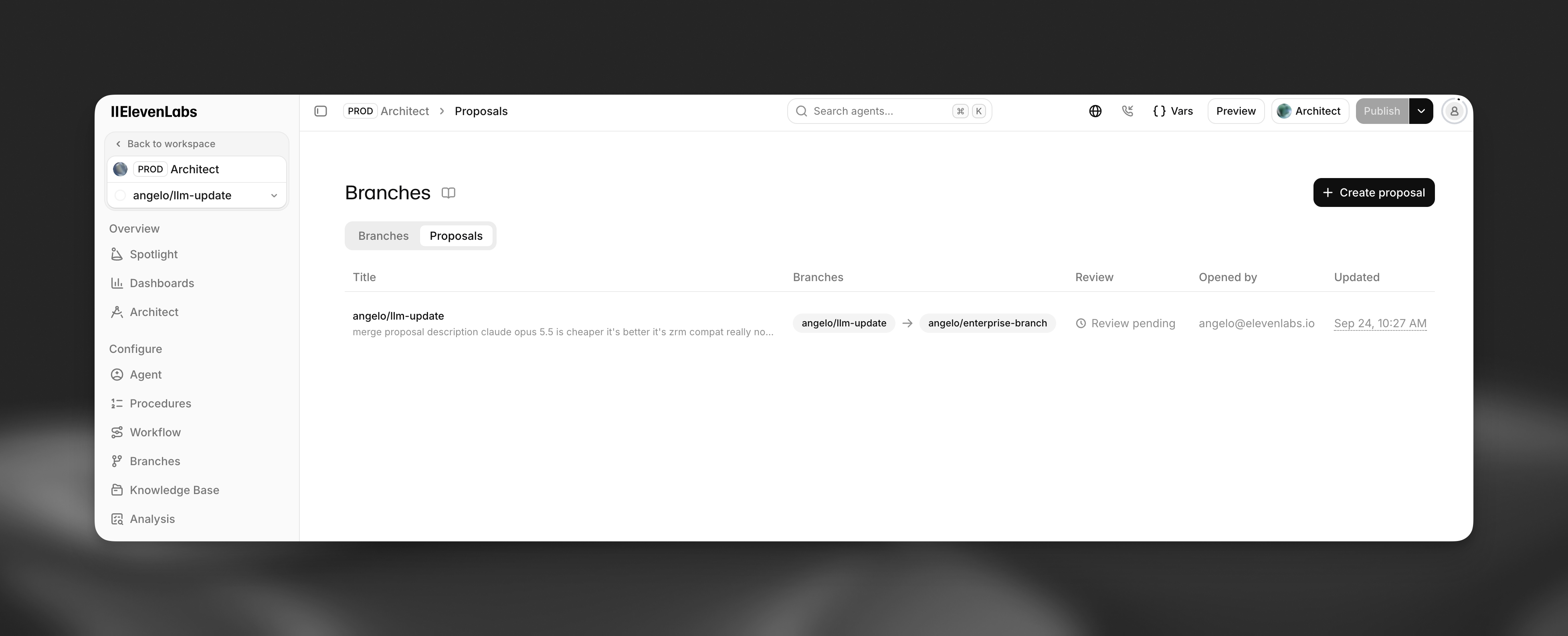
Anatomy of a proposal
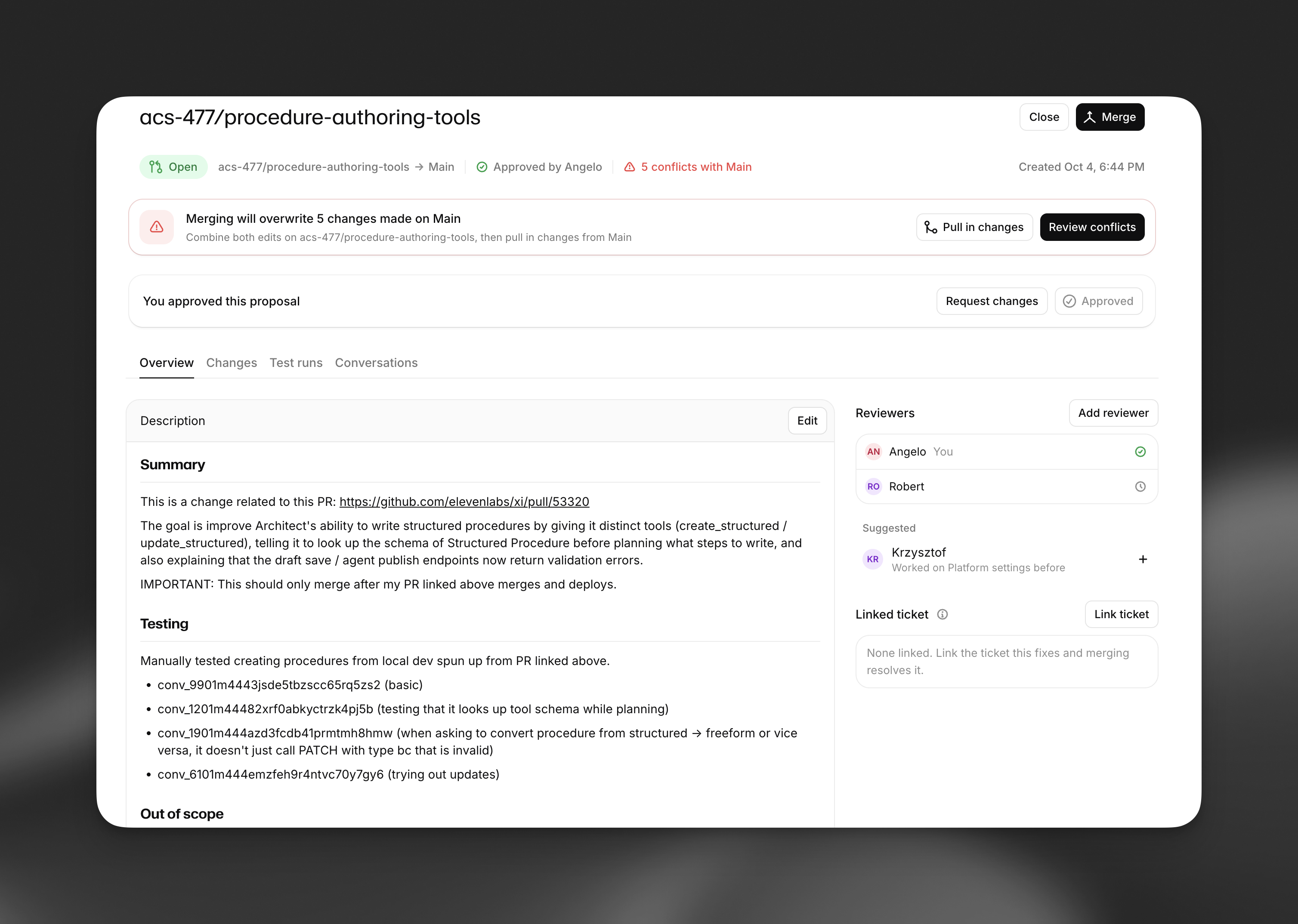
A proposal’s page shows the source and target branches, its status, whether it can be merged, and how far the source branch is behind or ahead of the target. It has these tabs:
Overview
Changes
Test runs
Conversations
The description, an activity timeline of commits on the source branch, reviews, and comments, and a comment box. The sidebar shows reviewers, recommended reviewers, and any linked triage ticket.
A description Architect writes always has three sections: Summary (each meaningful change and why), Testing (which tests were run and their results, or a statement that none were run), and How to review (what to focus on, and a test to run or conversation to try).
Reviewing and merging
Statuses
A merge proposal has one of these statuses:
While a proposal is open, each reviewer’s latest review is either Approved or Changes requested. There are no separate “tested” or “ready for review” statuses. Test results are shown on the Test runs tab instead.
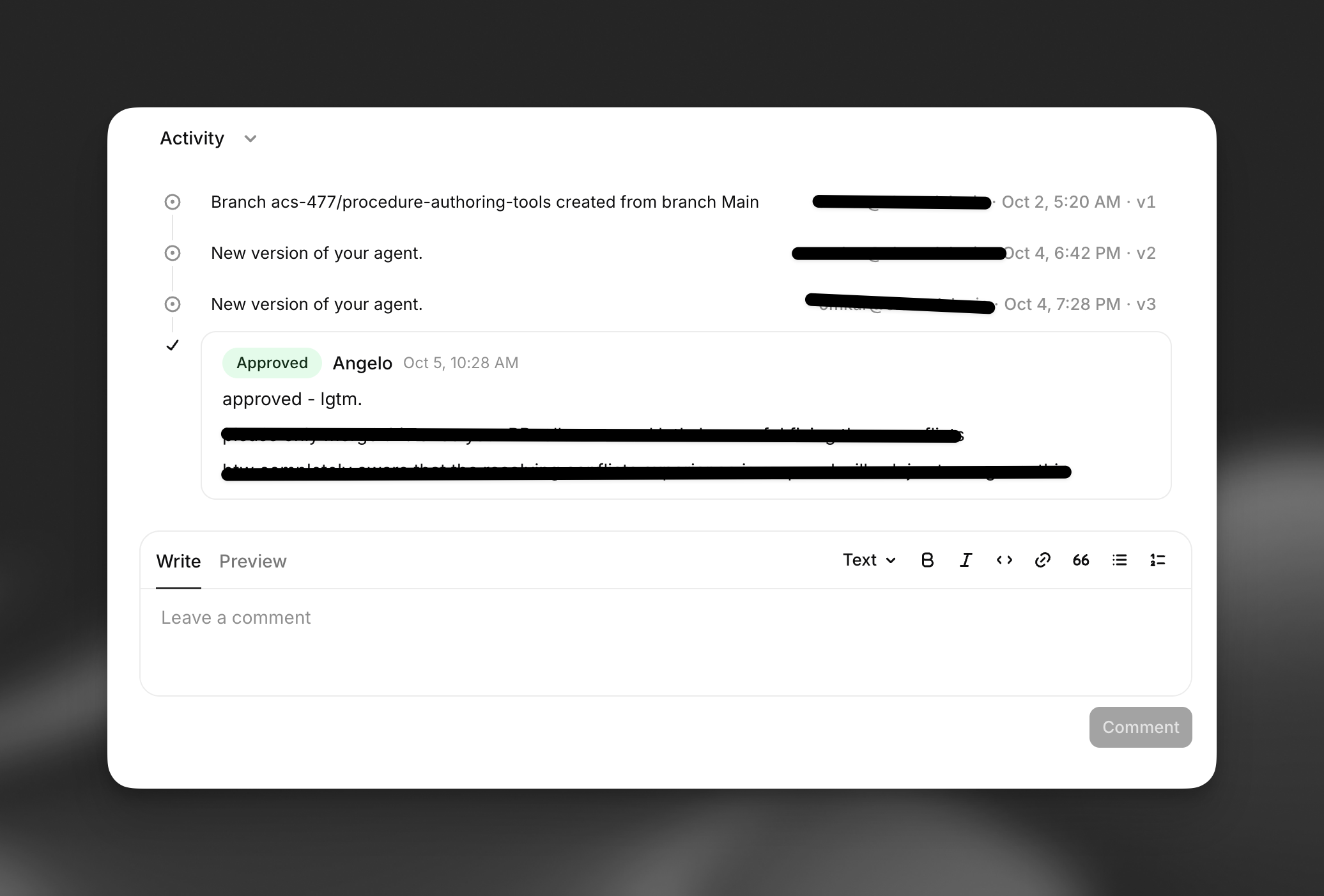
Reviews and comments appear in the activity timeline on the Overview tab, alongside each new version committed to the source branch.
Who can approve and merge
- Anyone with editor access to the agent can review a proposal, except its author. Because Architect acts as you, you can’t approve a proposal Architect opened in your conversation. A teammate has to.
- A proposal can be merged once it has at least one approval from someone other than the author and no reviewer’s latest review is Changes requested. Workspace admins can merge without an approval.
- Merging into a protected branch requires admin permissions, or an approval from an admin.
Architect can’t approve, comment on, merge, or close a merge proposal. Those steps are always done by people. See Merge proposals for the full review rules.
Architect can merge a branch directly, without a proposal, when you ask it to and your role allows
the merge. In Approval required mode it asks first. In Auto-approve mode it does not. Use
branch protection on main if every change must go through a reviewed proposal.
What happens on merge
There’s no separate publish step after a merge. Merging writes a new version on the target branch, and that version serves live traffic straight away for whatever share of traffic the target receives. When the target is main and no traffic split is set, that means all callers.
Merging also:
- Moves any live traffic share the source branch had to the target.
- Archives the source branch by default.
- Closes any other open proposal from the same branch.
- Resolves the linked triage ticket, if there is one.
Gradual rollout
Before a proposal is merged, you can send a share of live traffic to its branch so real callers exercise the change.
Start the split
Ask Architect, for example “Send 5% of traffic to this branch.” Architect tells you the full
resulting split, including main’s share, and asks for approval before applying it. You can
also set it yourself: in Version Control > Branches, select Deploy on the branch.
Traffic shares must always total 100%, and routing is deterministic per conversation. Changing the share of a protected branch, including taking traffic from a protected main, requires an admin. See Traffic deployment.
Proactive proposals
Architect produces proposals when you ask it to, or when you hand it a failing test, a Spotlight finding, an alert, or a triage ticket. It doesn’t yet scan your agents on a schedule or open proposals on its own.
The proactive path today is Spotlight followed by a hand-off. Spotlight watches your agent’s conversations continuously. It produces a weekly summary with suggested investigations, raises real-time alerts, and recommends configuration changes. To turn a Spotlight finding into a proposal:
Hand it to Architect
Select Open in Architect on a suggestion, Analyze with Architect on the summary, or Investigate with Architect on an alert. Architect receives the finding and is instructed to verify it against real conversations, and to identify which branch is affected, before suggesting a change.
Triage tickets work the same way. Your live agent can flag issues for review during conversations, and Discuss with Architect on a ticket starts an investigation of it.
Scheduled automations, with reports delivered to an Architect inbox, are in development. The Inbox tab on the Architect page is a placeholder for them.